

Installing Mega888 on Oppo and Realme Phones
The three moves that get it installed:
- Settings → Privacy → Install unknown apps, then allow File Manager.
- Tap the APK, let the threat scan finish, and choose to install anyway when ColorOS warns you.
- Expect the same warning again the first time you open Mega888. Tap through it once and it stops for good.
That third step is the one nobody tells you about, and it is why people think the install failed when it actually worked. Everything that is not Oppo-specific — the file itself, checking it is the original — sits on the Mega888 APK download guide.
Download Mega888 APKAuto Blocker still blocking? Get help on — WhatsApp Telegram
What Is Different on Oppo
ColorOS runs the same checks as most Android phones, with one habit of its own: it warns you twice. Once while the app installs, and once more the first time you open it.
The second warning is what makes Oppo worth its own page. By then the install has already succeeded, so a message about an unsafe app reads as though something went wrong afterwards — as though the app was fine and has since been infected. People uninstall a perfectly good copy at that point and start the whole process again, which produces the identical warning, which looks like confirmation.
Realme phones behave the same way; Realme UI is ColorOS with different branding. OnePlus phones now run on the same base as well, so the steps below hold there too.
Allowing "Install Unknown Apps" on ColorOS
Settings → Privacy → Install unknown apps.
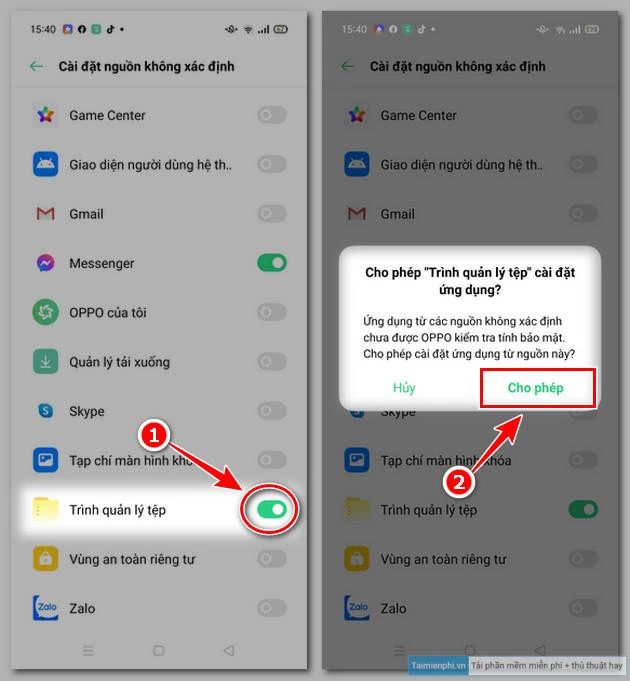
Allow File Manager if you are opening the APK from Downloads, or your browser if you are tapping it from the download notification. ColorOS grants this per app, so turning it on for one changes nothing for the others.
Oppo keeps this menu shallower than Xiaomi does, and the install prompt usually offers a shortcut straight to it — taking the shortcut is quicker than finding it yourself.
The Warning That Comes Back on First Open
ColorOS scans the app as it installs, flags it, and lets you continue. That much is ordinary. What is not ordinary is that it scans again the first time the app runs, and shows the same warning a second time.
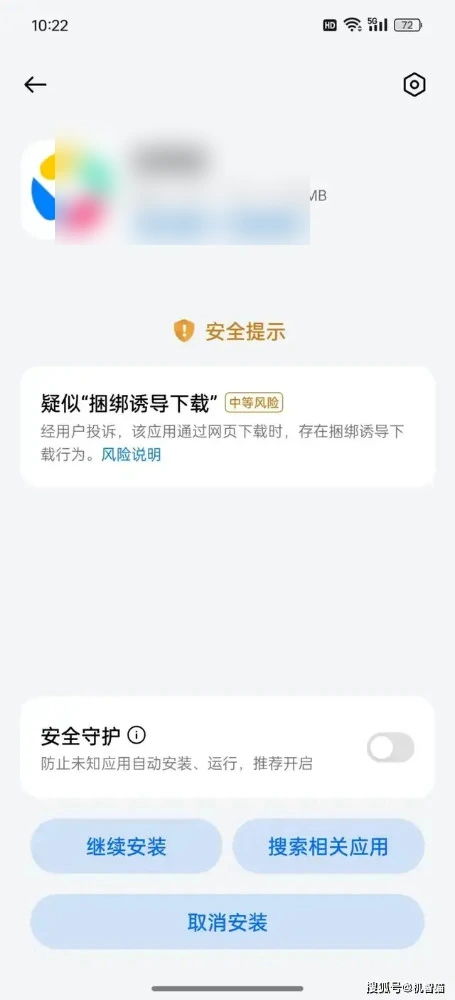
Nothing has changed between the two warnings. ColorOS is reporting the same fact both times — that the app did not arrive from a store — and it has no way to say so other than by showing the warning again.
Choose to open it anyway. The warning does not return after that, and it does not come back on later updates unless you uninstall and start over.
If the warning reappears every single time you open Mega888, that is a different problem: ColorOS is blocking rather than warning, and the app never completed its first run. Reinstall it once from the parent guide rather than tapping through repeatedly.
Where Oppo Saves Downloaded APK Files
File Manager → Downloads.
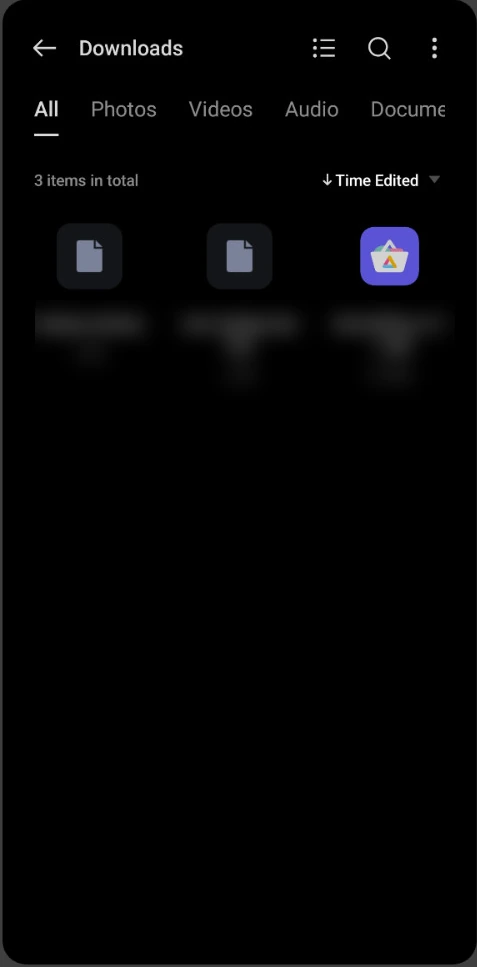
File Manager sits in the Tools folder on most Oppo phones. Every browser on the phone saves to the same Downloads folder, so it does not matter which one you used to fetch the file.
Common Oppo Problems
The warning appeared again after installing
Expected on Oppo, and covered above. Open it anyway once and it stops.
"Installation failed" with no reason given
Usually the unknown-apps permission granted to the wrong app. Check it is on for whichever app you are tapping the file in.
The app installed but has no icon
Check your app drawer and any folder ColorOS may have sorted it into. If it is genuinely absent, the install did not finish — tap the APK again rather than downloading it a second time.
Back to the Mega888 Android APK Guide
File size, version, checking your download is the original and updating it later all sit on the Mega888 APK download guide.
If you have not downloaded the file yet, start there.
18+ only. We are a Mega888 agent; the app and its games belong to the provider.