
Installing Mega888 on Samsung: Getting Past Auto Blocker
The three moves that get it installed:
- Settings → Security and privacy → Auto Blocker → turn it off. Nothing else on this page works until this is done.
- Open My Files → Internal storage → Download, tap the APK, and allow Install unknown apps when My Files asks for it.
- Tap through Samsung's scan warning, then Install.
Samsung is the only major brand that refuses the install outright rather than just warning you about it. If you already have the file and it will not go on, Auto Blocker is almost certainly why — the download itself is fine, and the Mega888 APK download guide covers everything that is not Samsung-specific.
Download Mega888 APKAuto Blocker still blocking? Get help on — WhatsApp Telegram
What Is Different on Samsung
One UI adds a layer the other brands do not have. On most Android phones, allowing an install from outside the Play Store is a single permission you grant once. On a Galaxy there are two gates, and they sit in different menus.
Auto Blocker is the first and the harder one. It is a single switch that refuses every app install from outside the Play Store, and on recent Galaxy phones it is on when the phone leaves the box. It does not ask, it does not offer an override in the moment, and the error it produces says nothing about Auto Blocker — which is why people spend an hour on the wrong setting.
The second gate is the ordinary Install unknown apps permission, and that one behaves the same as on any Android phone.
Turn Off Auto Blocker First
Settings → Security and privacy → Auto Blocker, then turn the switch off.
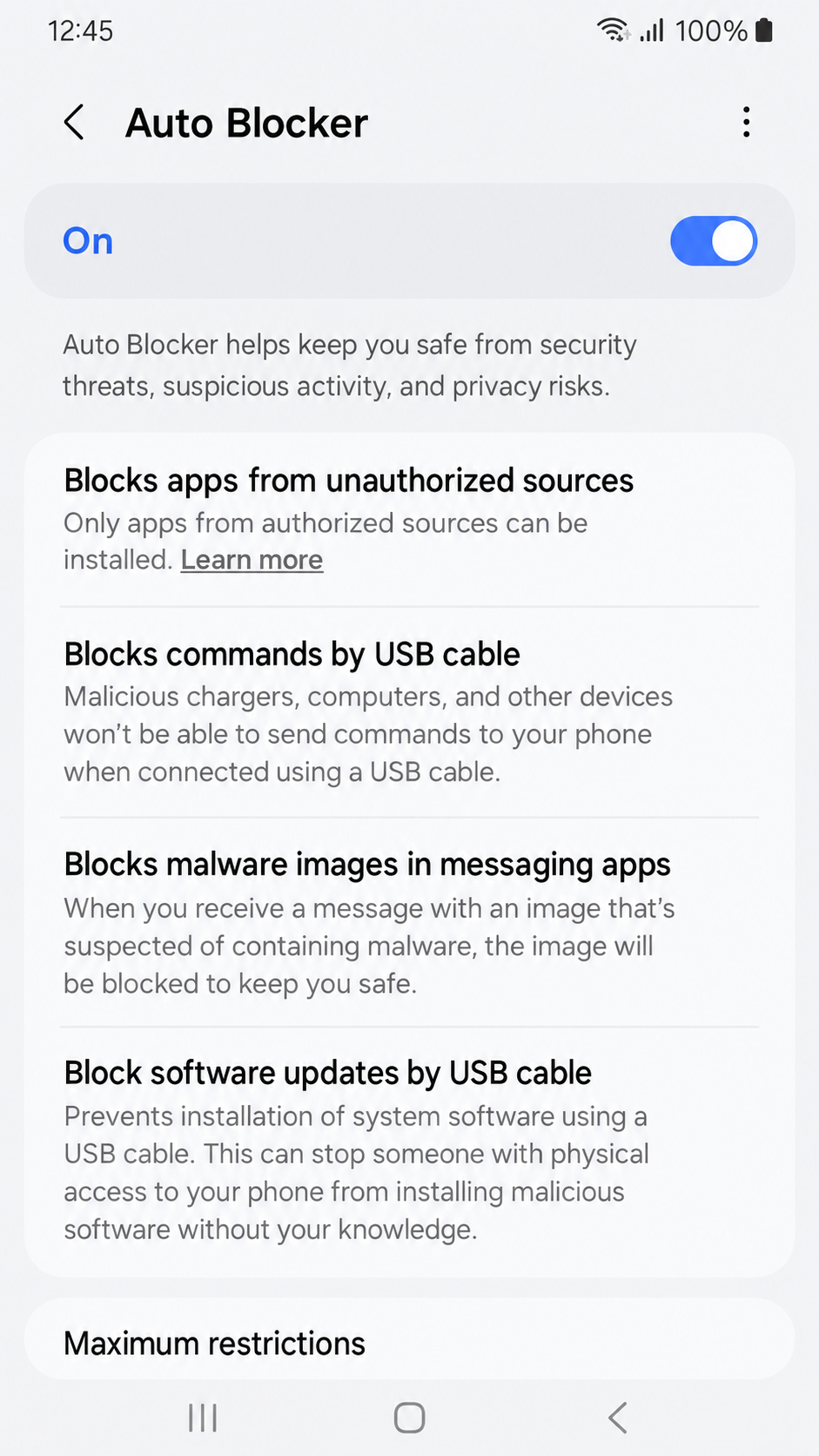
If there is no Auto Blocker entry in that menu, your Galaxy predates the feature and you have nothing to turn off — skip to the next section. It arrived with One UI 6.1 and reached older models through updates, so whether you have it depends on your software version rather than how old the handset is.
Turning it off does not switch off Samsung's other protections. Play Protect and Samsung's own app scanning both keep running, and you can turn Auto Blocker back on after Mega888 is installed without the app being affected.
Allowing "Install Unknown Apps" on Samsung
Settings → Security and privacy → More security settings → Install unknown apps.
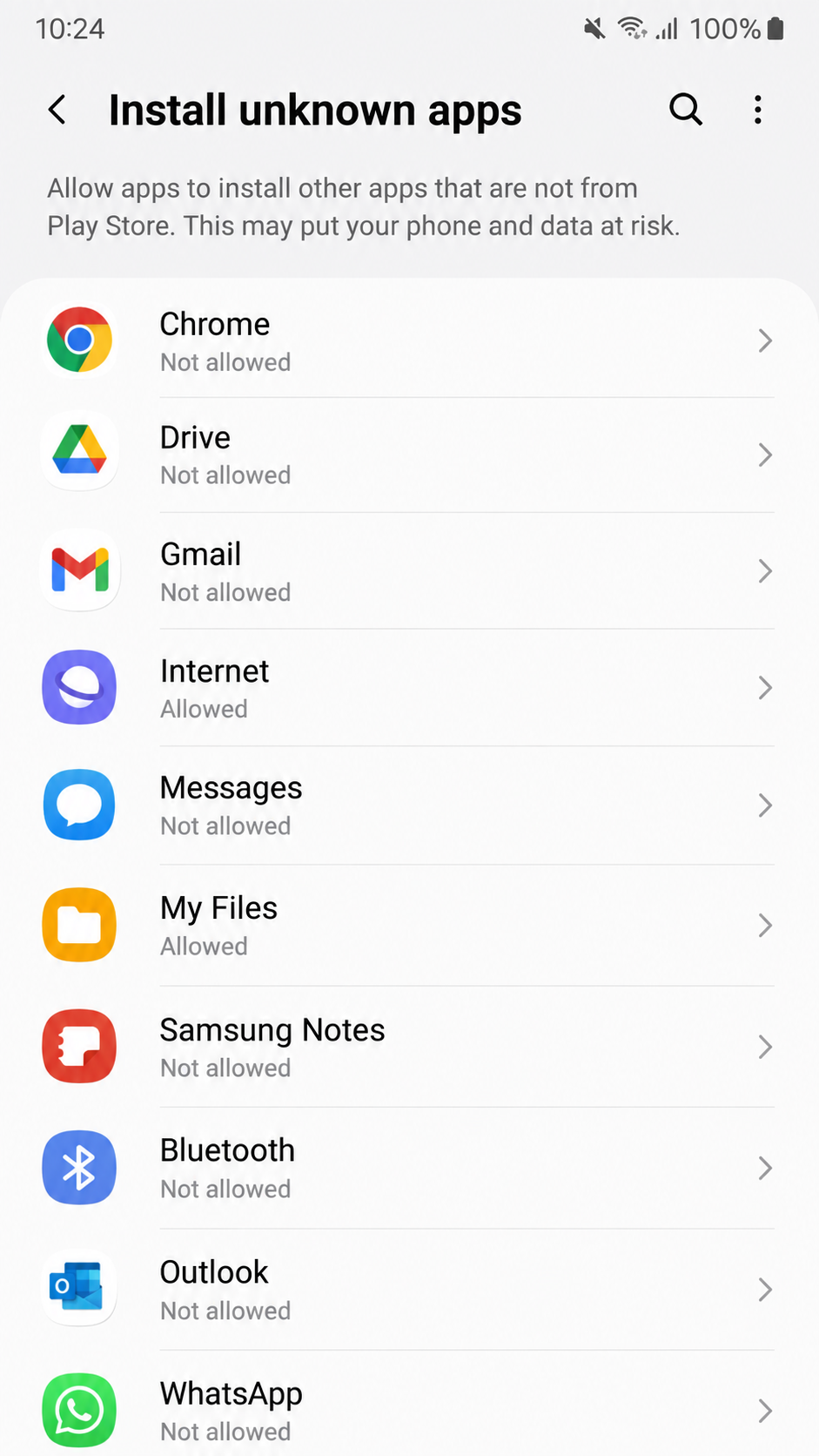
The list shows every app that could open an installer. Pick My Files if you are installing from your Downloads folder, or your browser if you are tapping the file straight from the download notification. The permission is per app — granting it to My Files says nothing about any other app on the phone.
In practice you rarely need to visit this menu at all. Tapping the APK usually produces the prompt with a shortcut straight to the right screen, and that shortcut is faster than navigating there yourself.
Where Samsung Saves Downloaded APK Files
My Files → Internal storage → Download.
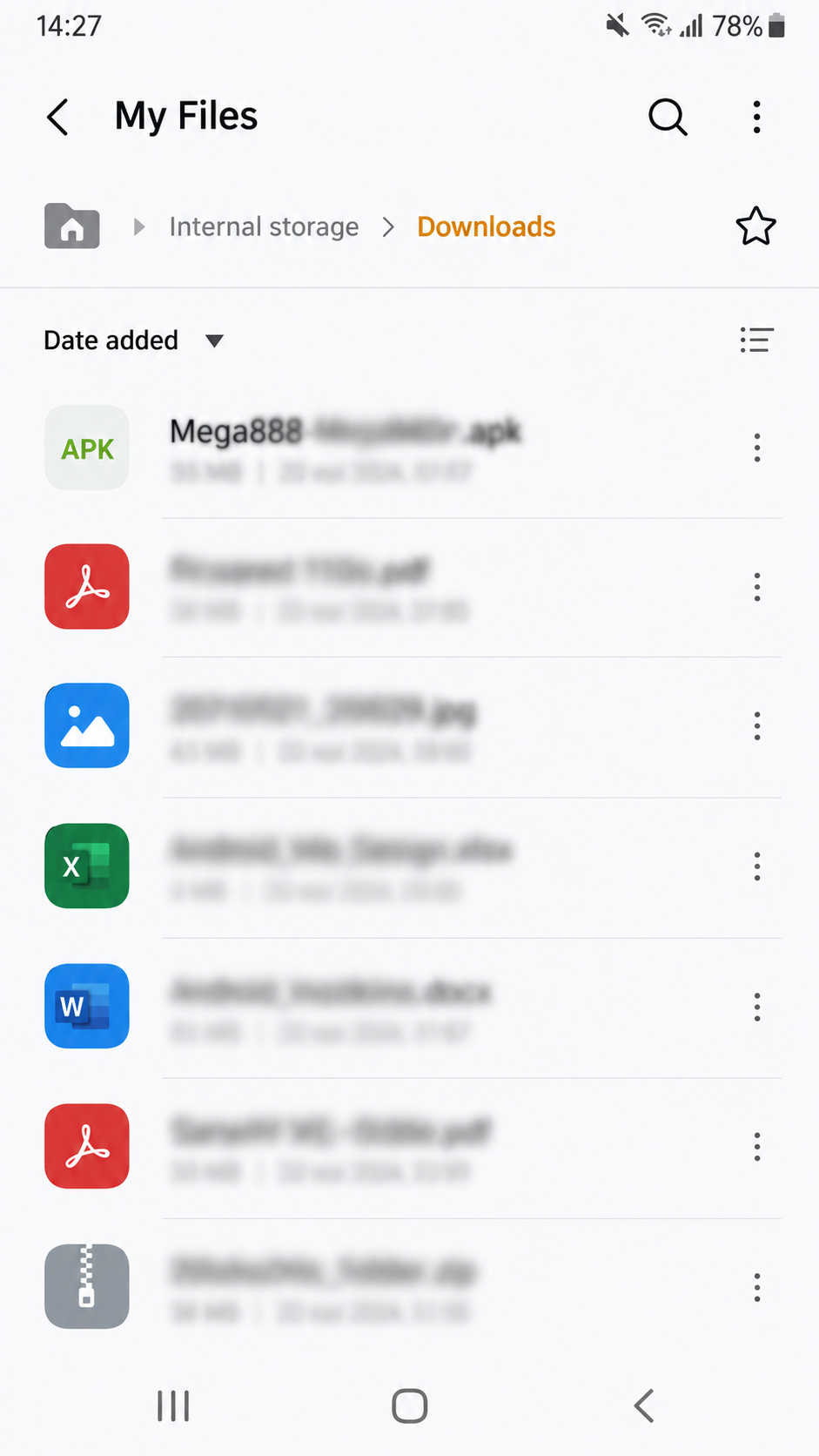
Samsung's file manager is called My Files, and it is on every Galaxy even when it is not on the home screen — swipe up and search for it. The Download folder is where Samsung Internet and Chrome both put files, so the APK will be there regardless of which browser you used.
Samsung Security Warnings You Will See
Two appear, and neither means the file is faulty.
"Blocked by Auto Blocker"
Or an install that simply fails with no clear reason, means the first switch is still on. Go back to the section above.
A scan notice from Samsung's own security
Usually offering to check the app before it installs, is separate from Play Protect and appears even on apps that are perfectly ordinary. Let it scan or skip it — either way the Install button underneath still works.
Common Samsung Problems
Auto Blocker is off but it still will not install
Check that you granted Install unknown apps to the app you are actually tapping the file in. Granting it to Chrome does not help if you are opening the file from My Files.
There is no Auto Blocker in my Settings
Your One UI version predates it. Nothing is wrong — go straight to the unknown-apps permission instead.
It installed, then disappeared after a restart
Rare, and usually Samsung's Secure Folder or a work profile rather than the phone itself. If the Galaxy is managed by an employer, sideloading may be blocked at that level and no setting on the phone will override it.
Back to the Mega888 Android APK Guide
Everything past the Samsung-specific part — the file details, checking the download is the original, updating it later — sits on the Mega888 APK download guide.
If you have not downloaded the file yet, start there.
18+ only. We are a Mega888 agent; the app and its games belong to the provider.